
How to Generate PDFs from HTML with an API (Step-by-Step)
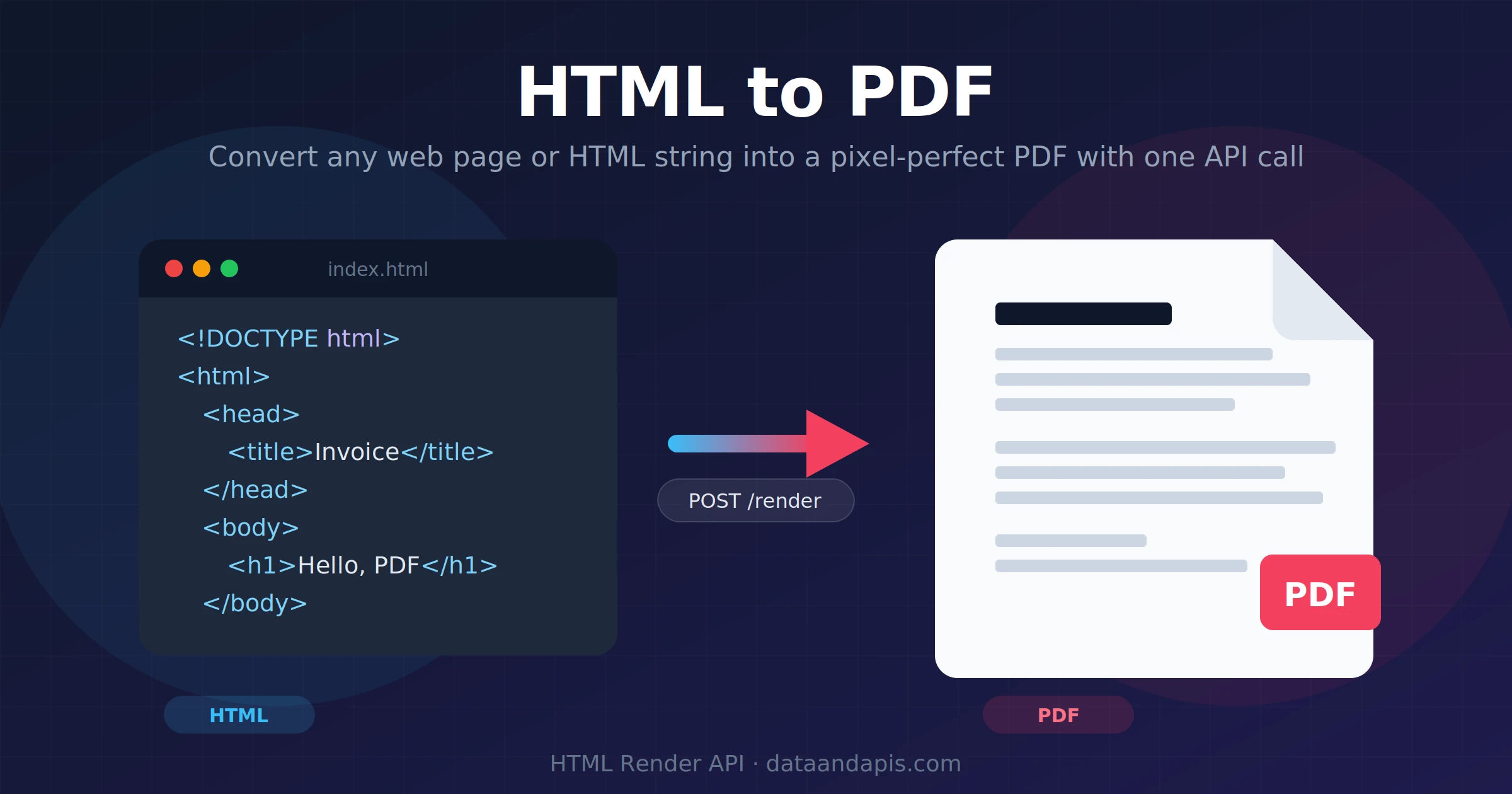
Sooner or later, almost every application needs to produce a PDF: an invoice after checkout, a monthly report for a client, a ticket with a QR code. And the moment that requirement lands, you discover that "just make a PDF" is one of the most deceptively annoying tasks in backend development — coordinate-based PDF libraries are painful, and browser print dialogs can't be automated.
There's a better mental model: you already know how to design documents. It's called HTML and CSS. The only missing piece is something that turns that HTML into a pixel-perfect PDF, reliably, from your server code.
In this guide you'll go from zero to a working HTML-to-PDF endpoint in a few minutes: a single curl command first, then production-ready examples in JavaScript and Python, the PDF options that actually matter, and the CSS gotchas (page breaks, fonts, backgrounds) that trip everyone up the first time.
The 30-Second Version
If you just want a PDF right now, here it is. One POST request with your HTML in the body, a PDF file back:
curl -X POST https://html-render.dataandapis.com/v1/convert \
    -H "Content-Type: application/json" \
    -H "X-Api-Key: YOUR_API_KEY" \
    -d '{"html": "<h1>Hello, PDF!</h1>", "format": "pdf"}' \
    --output hello.pdf
That's the whole integration. The response body is the PDF binary — no job queues, no polling, no webhooks for typical documents. The rest of this post covers how to make the output production-grade.
Why HTML Is the Right Way to Build PDFs
Classic PDF libraries make you place every element at x/y coordinates and hand-measure line wraps. HTML flips that: you describe the document, and a layout engine does the hard part. Concretely, generating PDFs from HTML gives you:
- A design tool you already know: flexbox, grid, web fonts, SVG — your invoice is just a web page.
- Reusable templates: the same template engine you use for emails or pages (Handlebars, Jinja, JSX) renders your documents.
- Trivial iteration: preview the template in a browser tab, tweak CSS, ship. No recompiling coordinate math.
- One template, many outputs: the same HTML can become a PDF for archiving and a PNG for a preview thumbnail.
The DIY Route (and What It Really Costs)
To convert HTML to PDF with full modern-CSS fidelity, you need a real browser engine. The honest state of the DIY options:
- wkhtmltopdf: the old default is now abandonware — archived on GitHub in January 2023, last release in 2020, an unpatched SSRF vulnerability (CVE-2022-35583), and a WebKit engine too old for flexbox or grid. Don't start new projects on it.
- Puppeteer / Playwright: excellent output quality, because they drive a real headless Chromium. This is the right DIY choice — and also a real operational commitment.
- CSS-only renderers (WeasyPrint, etc.): lighter to run, but no JavaScript execution and a subset of CSS — fine for simple static documents, limiting for anything chart-heavy.
Running headless Chromium yourself means owning a few things forever: a several-hundred-megabyte browser dependency in your image, hundreds of megabytes of RAM per concurrent render, cold-start pain on serverless platforms, font packages for anything beyond Latin text, and keeping Chromium patched. None of it is hard on day one; all of it is toil by month six.
If document generation is your product, that investment can be worth it. If you just need reliable PDFs so you can get back to your actual product, put the browser behind an API. That's exactly what the HTML Render API is: managed headless Chromium with a one-request interface.
Step 1: Get an API Key
Sign up on dataandapis.com, subscribe to the HTML Render API, and grab your key from the dashboard. Every request authenticates with a single X-Api-Key header — no OAuth dance.
Step 2: Build a Real Document — an Invoice
"Hello world" doesn't teach you much, so let's render something you'd actually ship: an invoice. Note that the CSS is inlined in a <style> tag — the request carries the complete document:
<!doctype html>
<html>
<head>
<style>
    body { font-family: Helvetica, Arial, sans-serif; color: #1e293b; }
    header { display: flex; justify-content: space-between;
             border-bottom: 3px solid #1e40af; padding-bottom: 12px; }
    table { width: 100%; border-collapse: collapse; margin-top: 24px; }
    th { background: #1e40af; color: #fff; text-align: left; padding: 8px; }
    td { padding: 8px; border-bottom: 1px solid #e2e8f0; }
    .total { text-align: right; font-size: 20px; margin-top: 16px; }
</style>
</head>
<body>
    <header><h1>Invoice #2026-0142</h1><p>Due: Sep 30, 2026</p></header>
    <table>
        <tr><th>Description</th><th>Qty</th><th>Total</th></tr>
        <tr><td>PDF generation (10k renders)</td><td>1</td><td>$49.00</td></tr>
        <tr><td>Priority support</td><td>1</td><td>$19.00</td></tr>
    </table>
    <p class="total"><strong>Total due: $68.00</strong></p>
</body>
</html>
Step 3: Convert It — JavaScript and Python
JavaScript (Node 18+, no dependencies)
import { readFile, writeFile } from "node:fs/promises";

const response = await fetch("https://html-render.dataandapis.com/v1/convert", {
    method: "POST",
    headers: {
        "Content-Type": "application/json",
        "X-Api-Key": process.env.HTML_RENDER_API_KEY,
    },
    body: JSON.stringify({
        html: await readFile("invoice.html", "utf8"),
        format: "pdf",
        options: {
            format: "A4",
            printBackground: true,
            margin: { top: "24px", right: "24px", bottom: "24px", left: "24px" },
        },
    }),
});

if (!response.ok) throw new Error(`Render failed: ${response.status}`);
await writeFile("invoice.pdf", Buffer.from(await response.arrayBuffer()));
Python (requests)
import os
import requests

resp = requests.post(
    "https://html-render.dataandapis.com/v1/convert",
    headers={"X-Api-Key": os.environ["HTML_RENDER_API_KEY"]},
    json={
        "html": open("invoice.html", encoding="utf-8").read(),
        "format": "pdf",
        "options": {"format": "A4", "printBackground": True},
    },
    timeout=60,
)
resp.raise_for_status()

with open("invoice.pdf", "wb") as f:
    f.write(resp.content)
Both scripts do the same thing: read the template, POST it, write the binary response to disk. In a real app you'd render the template with your data first (Handlebars, Jinja, JSX — anything that outputs an HTML string) and stream the response straight to the user or to object storage instead of a local file.
The Options That Actually Matter
- options.format: page size —
A4(default),A3,A5,Letter,Legal, orTabloid. UseLetterfor US-audience documents. - options.printBackground: defaults to
true. This is why the invoice's blue header row shows up — browsers normally strip background colors when printing. - options.margin: per-side page margins (
"20px","1cm"…). Set them here, or take full-bleed control withmargin: 0and pad inside your CSS. - options.viewport: the browser window size used for layout (default 1200×800) — mostly relevant when your CSS has responsive breakpoints.
- format (top level): switch
"pdf"to"png","jpeg", or"webp"and the same request returns an image of the page instead — one template, four output formats.
CSS Gotchas Nobody Tells You About
These four issues cause 90% of "the PDF looks wrong" bugs:
- Page breaks in the wrong place: long tables split mid-row unless you tell the engine not to. Use the CSS fragmentation properties below.
- Missing assets: the renderer only sees what you send. Inline your CSS, use absolute
https://URLs for images — or better, embed logos as base64data:URIs so the document is self-contained. - Fonts: link web fonts (Google Fonts works) or embed them with
@font-face; don't rely on a font being installed "on the server". - Screen-only CSS: anything inside
@media screenis ignored during printing; put document styles in the base stylesheet or@media print.
/* Keep table rows and sections intact across pages */
tr, .line-item { break-inside: avoid; }

/* Force each chapter to start on a fresh page */
.chapter { break-before: page; }

/* Take control of the page itself */
@page { size: A4; margin: 0; }
Five Things to Build with This
- Invoices & receipts: generate at checkout time and attach to the confirmation email.
- Scheduled reports: a cron job that renders your dashboard template with fresh numbers and emails the PDF every Monday.
- Tickets & badges: QR codes are just SVG or an
<img>— perfect fidelity in print. - Certificates: one elegant template, a name variable, thousands of personalized PDFs.
- Terms & contract snapshots: archive exactly what a user agreed to, rendered to an immutable document — with a PNG thumbnail from the same request format.
Wrap-Up
HTML plus CSS is the fastest way to design documents, and an API is the cheapest way to turn them into PDFs without adopting a headless browser as a pet. You've seen the whole integration: one POST to /v1/convert with your HTML, a binary PDF back, and a handful of options and CSS rules for production polish.
Ready to render your first document? Get your API key on the HTML Render API page and you'll have a PDF in the next five minutes.